Grunderna (Att komma igång)
Det här är de grundläggande stegen som måste följas. För mer djupgående information, följ länkarna nedan.
Before content can be displayed on a screen, a few configuration steps must be completed. GoBright View consists of the GoBright Portal and one or more connected devices, all of which need to be properly configured.
The basic setup process includes the following steps:
-
Lägg till en enhet
-
Create a channel, including the required zone(s) and resolution(s)
-
Create a playlist
-
Upload and assign content to your device(s)
These are the essential steps required to get your digital signage environment up and running. For more detailed instructions and configuration options, please refer to the articles linked below.
Lägga till en enhet
The preparation process depends on the type of device you are using with GoBright View. GoBright View supports the following device types:
-
LG webOS displays or media players
-
Android displays or media players
-
Industrial PCs (GoBright Players)
In all cases, the GoBright View app must be installed on the device before it can be used for digital signage.
Certified GoBright Players purchased through a GoBright partner come with the GoBright View software pre-installed, allowing for a faster setup process.
For installation instructions, please refer to the appropriate guide for your device:
-
Certified LG webOS devices: LG webOS Installation Guide
-
Certified Android devices: Android Installation Guide
-
Certified hardware overview: Certified Devices
Once the GoBright View app has been installed and launched, an activation code will be displayed on the screen. Enter this code in the GoBright Portal to activate the device and link it to your environment.
After the device has been successfully activated, you can begin configuring it within GoBright View and assigning content for playback.
For detailed activation instructions, see: Activate a Device.
Skapa en kanal, en zon och en eller flera resolutioner
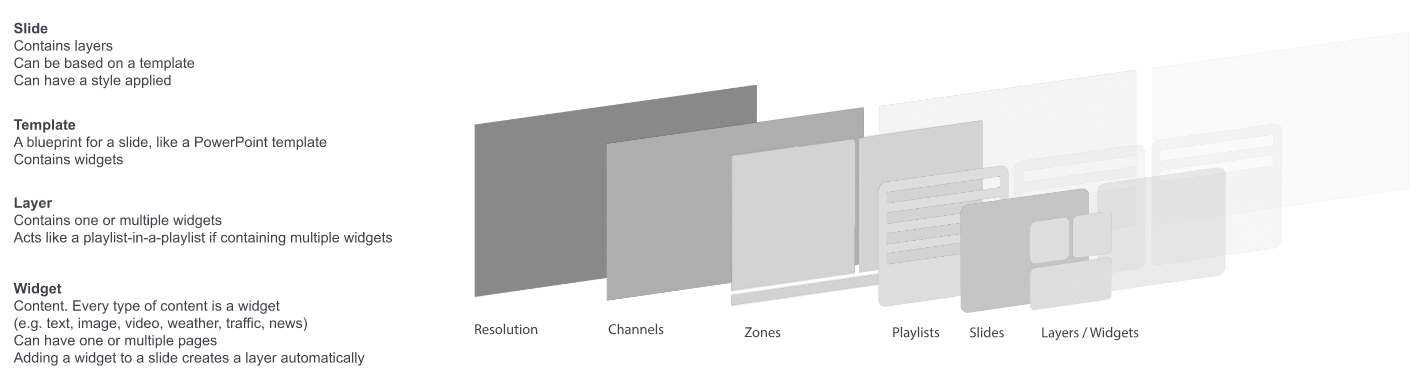
GoBright View uses channels in a similar way to traditional TV channels. A channel acts as a container for your digital signage content and consists of one or more zones, each of which can contain one or more playlists.
This flexible structure allows you to create dynamic screen layouts, where different types of content can be displayed simultaneously in separate areas of the screen.
GoBright View supports multiple screen resolutions within a single channel and even allows you to combine landscape and portrait layouts. When a device is assigned to a channel, it automatically selects the most suitable resolution and orientation, ensuring that content is displayed optimally on every screen.
To learn how to create channels, configure layouts, and manage resolutions, please refer to the Channels & Layouts article, which provides step-by-step guidance on setting up your digital signage structure.
Skapa en spellista
Once your channel and layout have been configured, the next step is to create a playlist.
A playlist is a collection of one or more slides, with each slide containing a specific piece of content such as an image, video, webpage, announcement, or other digital signage item. By combining multiple slides into a playlist, you can create engaging content sequences for your audience.
After creating a playlist, you can schedule it to play on specific:
-
Dates and times
-
Kanaler
-
Apparater
This flexible scheduling system ensures that the right content is displayed on the right screens at the right moment.
For detailed instructions on creating, managing, and scheduling playlists, please refer to the Playlists article.
Skicka konfigurationen och innehållet till enheterna
Det sista steget är att skicka konfigurationen och innehållet (schemalagda spellistor) till enheterna. Detta måste göras varje gång något i konfigurationen eller ett schema, en spellista eller en bild har lagts till eller ändrats.
Läs vidare om Uppdatering av innehåll och konfiguration
The final step is to publish your configuration and content to the devices. This process sends all channel settings, layouts, playlists, schedules, and media content from the GoBright Portal to the connected screens.
Whenever you make changes to your digital signage environment, such as:
-
Adding or modifying a channel or layout
-
Creating or updating a playlist
-
Adding, removing, or editing slides
-
Changing a schedule
-
Assigning content to different devices
you must update the device configuration so the latest changes are applied and displayed on the screen.
Regularly updating your devices ensures that the content shown always reflects the most recent configuration and scheduling settings defined in the GoBright Portal.
For detailed instructions, please refer to the Update content and configuration article.