How to book a room or desk using the Interact
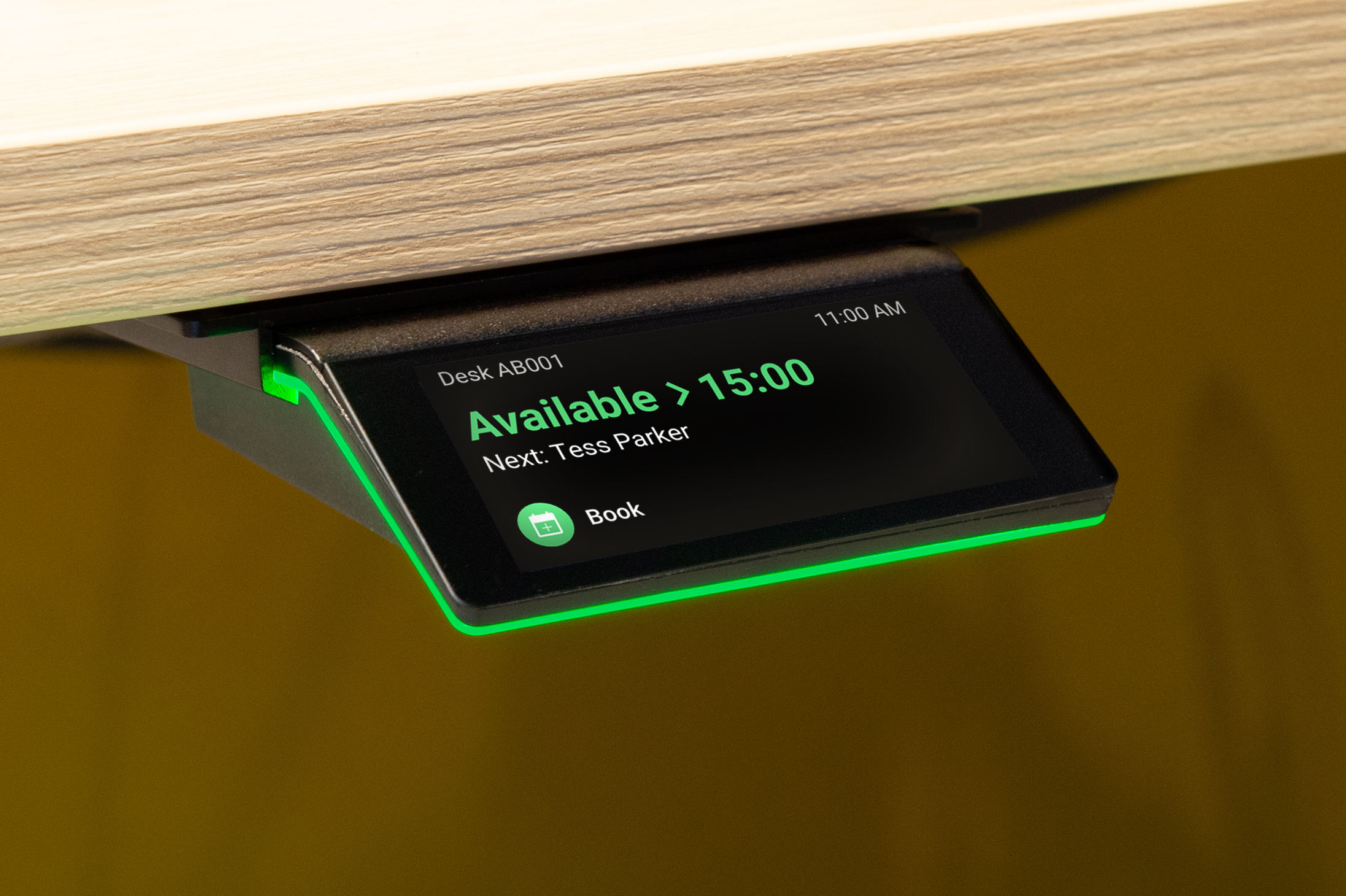
To book a room via an Interact:
- Tap the Book button in the bottom right corner
- Choose a predefined booking duration
- Check-in by scanning the QR code, via NFC or the GoBright mobile app OR book anonymously
To book a desk via an Interact:
- Tap the Book button in the bottom right corner
- Choose a predefined booking duration
- Check-in by scanning the QR code, via NFC or the GoBright mobile app OR book anonymously
Current status of a room or desk
The current status of a room or desk is visible on the display and from the colour of the LED’s of the Interact.
- Green (available)
- Orange (awaiting confirmation, occupation detected)
- Red (occupied)
- Blue (do not disturb)
- Purple (needs cleaning)
