Using the intermediate Windows Service
For badge printing, the Visitor Kiosk tablet can send print jobs to a printer via an intermediate Windows service.
This Windows service must be installed on-site on a Windows server or workstation. The printer used for badge printing must also be installed on the same server or workstation.
Important: The printer must be installed locally on the Windows server or workstation running the service. A network printer is supported, but a printer shared from another server or workstation cannot be used.
The Visitor Kiosk tablet connects to the Windows service over the local network and sends print jobs to the installed printer.
The following image illustrates how this works:
Please note about certified and non-certified printers
Via the intermediate Windows printing service, you can print to any Windows printer, but GoBright can only support the certified printers
Please review the certified hardware overview for tested and certified printers here.
Installation on the Windows server / workstation
- Install the printer on the Windows server or workstation and make sure it is working correctly.
- Make sure the Windows server or workstation has a fixed IP address.
- Download the latest version of the GoBright Badge Printing Service via this link.
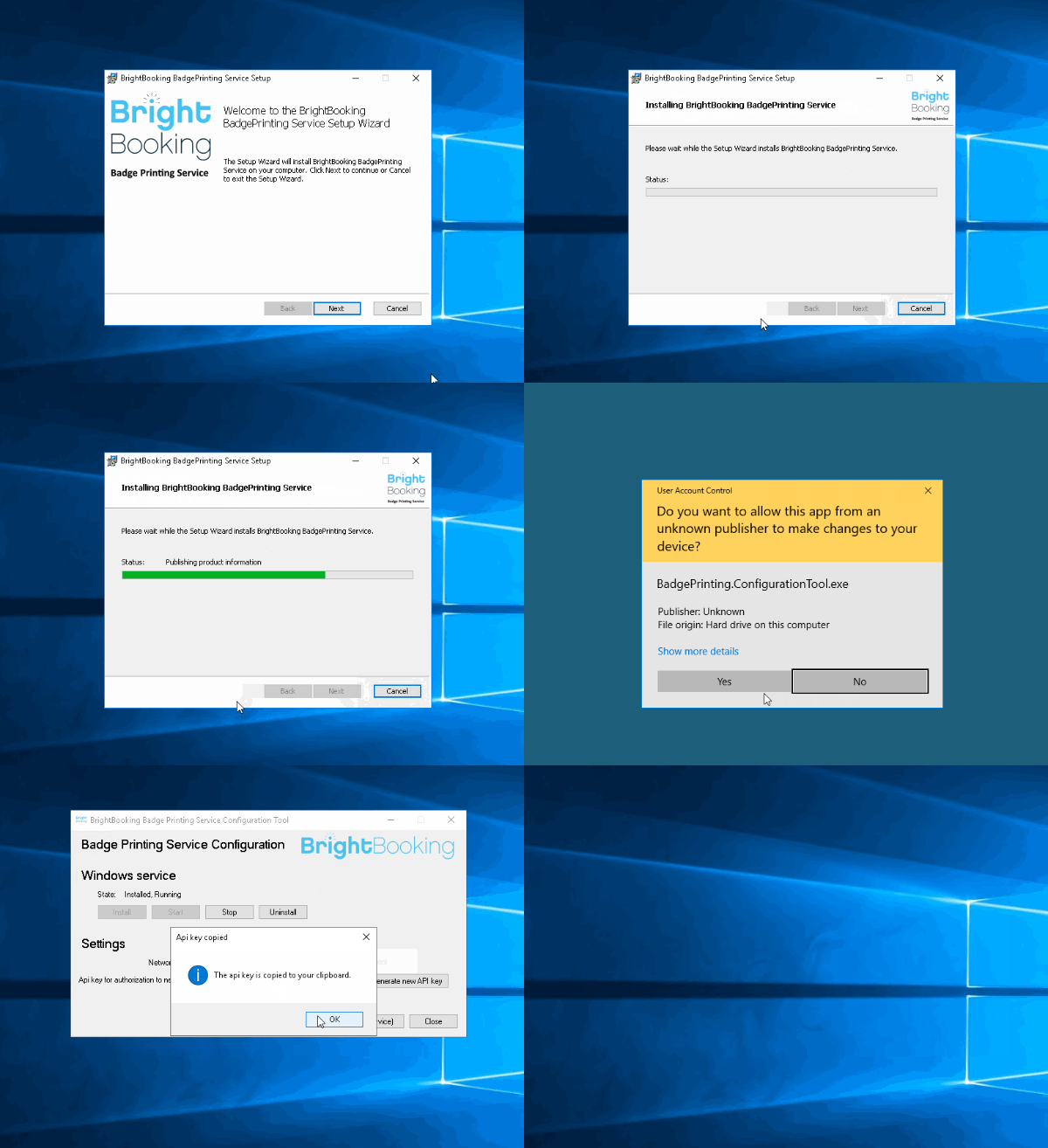
- Follow the installation steps. The configuration tool will start automatically once the installation is complete.
- Take note of the network port number and the API key, as you will need these later to configure the connection to the Visitor Kiosk.
Configure the kiosk
The next step is to configure the Visitor Registration Kiosk to connect to the GoBright Badge Printing Service.
We assume that you have already activated the Visitor Registration Kiosk.
- Go to Settings > Devices and find the device representing the kiosk you want to configure.
- Click the device to open its settings.
- Change the Printer setting to Badge print service. Additional configuration fields will appear:
- Hostname / IP: Enter the hostname or IP address of the Windows server or workstation running the GoBright Badge Printing Service. If necessary, you can also specify the port number configured for the service using the following format:
[hostname/IP]:[port number]. - API key: Enter the API key configured during the installation of the GoBright Badge Printing Service.
- Windows printer name of Badge Printer: Enter the exact name of the printer as it is installed on the Windows server or workstation.
- Hostname / IP: Enter the hostname or IP address of the Windows server or workstation running the GoBright Badge Printing Service. If necessary, you can also specify the port number configured for the service using the following format:
Testing the settings
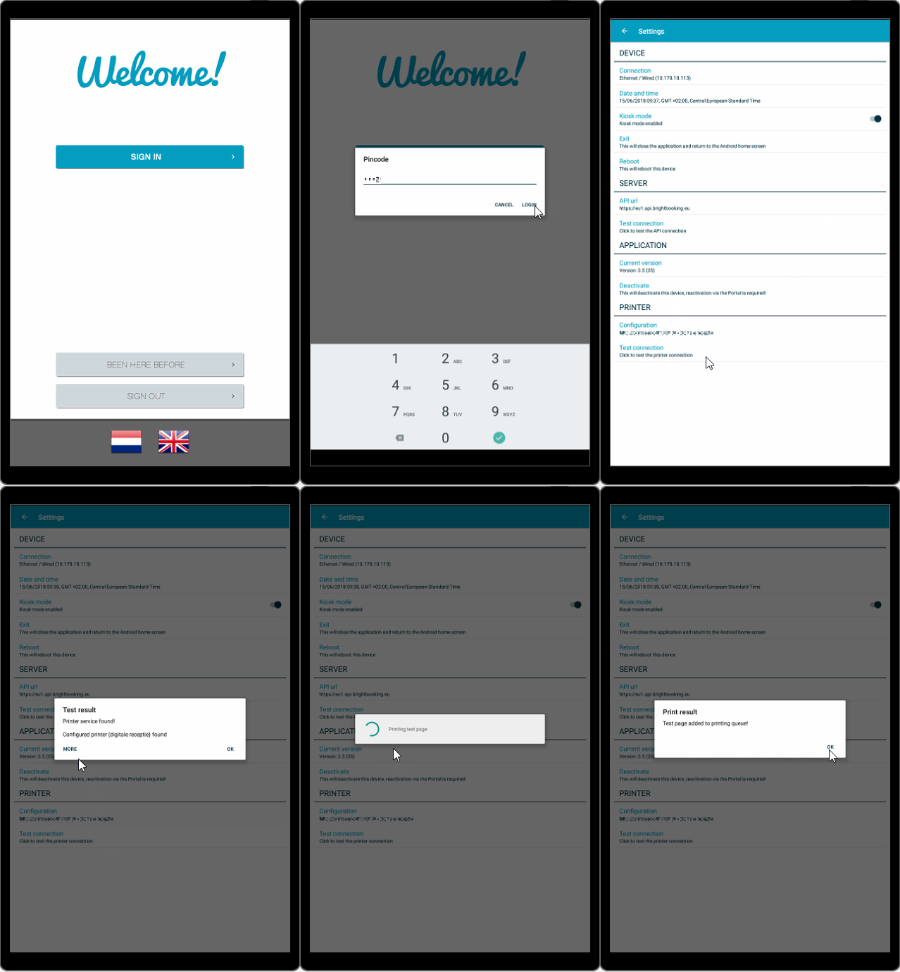
The kiosk will load the configured settings in a few moments, from that moment on, you can test the configuration in the settings menu of the kiosk. Testing is only possible from the kiosk, not from the portal.
Go to the display device settings, at the bottom extra buttons appear to test the printing configuration.
The kiosk will load the configured settings within a few moments. Once the settings have been loaded, you can test the configuration from the kiosk’s settings menu.
Note: Testing is only possible directly from the kiosk, not from the GoBright portal.
To test the printing configuration, open the kiosk’s settings menu. Additional buttons for testing the printer will appear at the bottom of the display device settings.