Map viewer display profile
The map viewer display profile stores shared configuration settings for the map viewers you use. These profiles allow you to apply consistent display and behavior settings across multiple map viewer devices.
You can find and manage map viewer display profiles in the GoBright portal under Settings > Devices > Profiles, where you can create, edit, or assign profiles as needed.
Device settings
The device settings configure the device in case the map viewer is shown on a certified device (check if the map viewer is applicable on your device in certified hardware). It is advised to secure the access to the settings on the device itself and schedule a daily reboot.
Mapviewer settings
These settings define the details you want to show on the map viewer. You can select to show the organizer of the booking (the person who booked the room or desk) and to show the legend of the colors on the map viewer resources such as desks, rooms or parking spaces. If you do not want to disclose those details, you can turn off this option.
In the Theme section with selecting the Version 2 new options will appear. In this version 2 is adding your logo possible and also the possibility to show accessibility icons on the map viewer.
Note: Minimum device requirements: Android 6 and WebView v85.
Opening hours
The Opening hours of the map viewer configure when the device should turn the display on and off, in case the map viewer is shown on a certified device (applicable if the map viewer is shown on certified hardware).
Preview of a display with a map viewer
Theme – Version 1 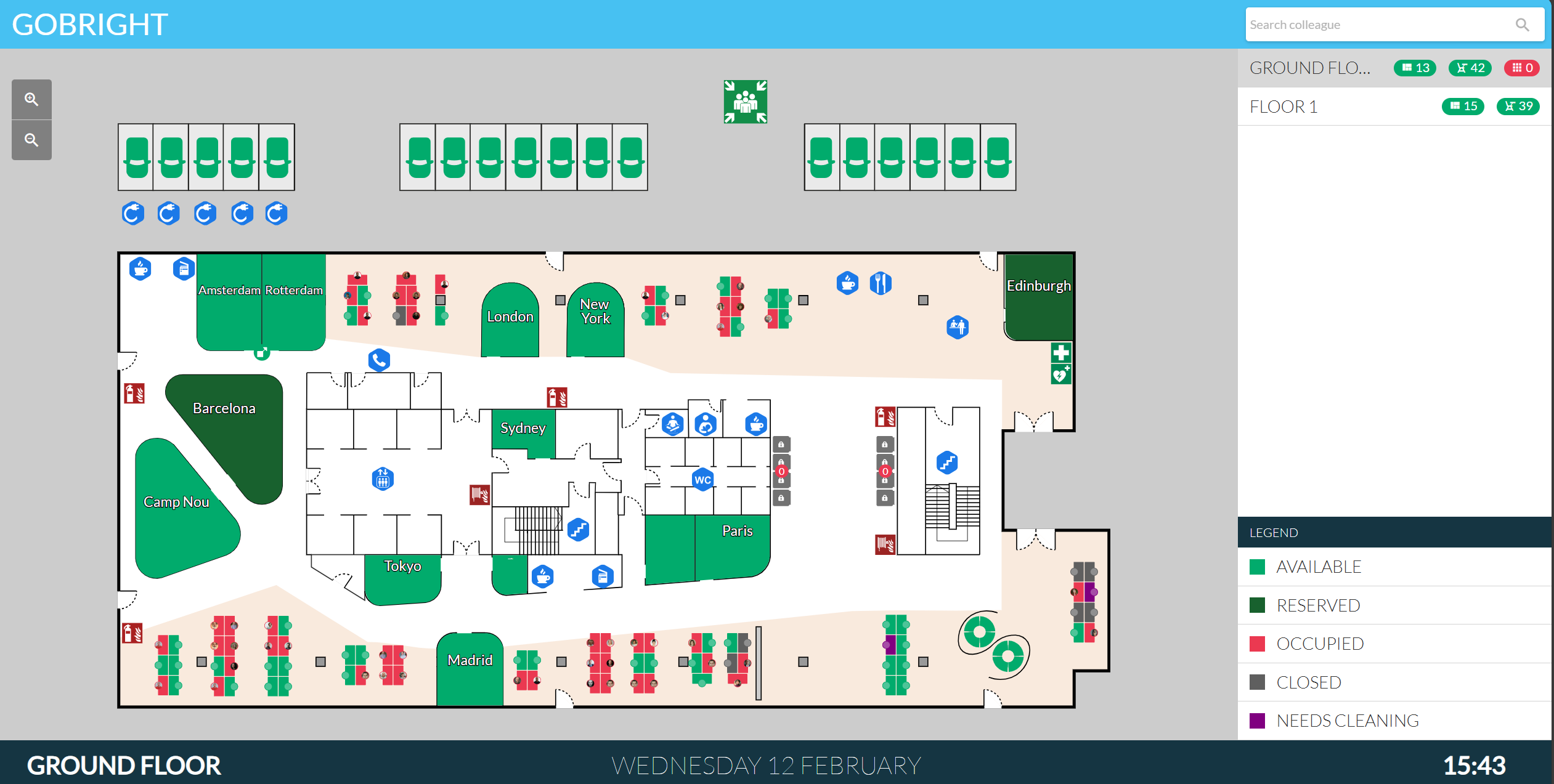
Theme – Version 2
Within this map viewer version you can toggle between multiple floors for which you can see the abbreviations in the top left corner. In our example, we have Ground floor – GF and 1 Floor – 1F. The time for the screen to show different floors on the map viewer is 2 minutes.
Accessibility icons are shown on the map viewer is this is selected in the profile.
On the right-hand side, there is a section called Facility Resources.
Use this section to make a better selection and proceed with your booking. You can choose between different resources such as rooms, desks, parking spaces or lockers to make your booking experience easier. Also, you can check the desk booking of your colleague and book a desk for yourself nearby.
Type the desk name and many options will appear depending on their availability for the day.
If you want to book a meeting room, make the selection of the available room:
Select the time length of your meeting using the quick booking suggestion buttons:
With Find a Colleague or Resource, the desk/room you are searching or the resource booked by your colleague will be highlighted with blue circles on the map:
Map routing shown on the map viewer
With this map routing feature, you can create a complete navigational path for an entire floor or even your whole building. It allows you to guide users to any resource on any level of the facility. The system can display turn-by-turn directions, showing users how to reach their booked desk or meeting room using the most suitable route -whether that’s via stairs, elevators, or the nearest available exit. This ensures a seamless, intuitive wayfinding experience for all users.
This provides an overview of how the map routing functionality works and it’s applicable only to Version 2 of the map viewer.
Adding map viewer to a device
You can use either a touch or non-touch screen to display your map viewer. To add a device, go to the GoBright portal under Settings > Devices > Displays > Add, then select the profile for your map viewer and the map viewer itself. You can grant access either via an Activation Code or a Direct Access URL.
With a Direct Access URL, you can display the map viewer on your device without needing the GoBright device app. For more information on activating a device using the GoBright app, please refer to the linked article.
